
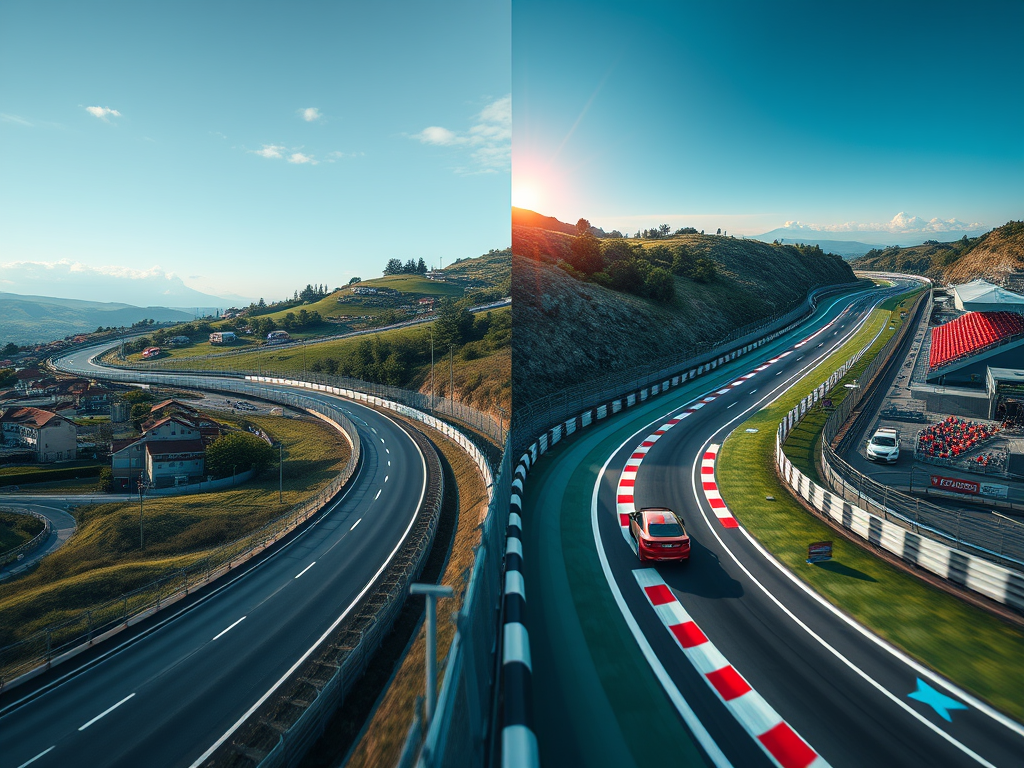
Have you ever dreamed of racing down your hometown streets in a virtual supercar? I certainly have. As a sim racing enthusiast and admirer of the modding community, I’ve always been fascinated by the intersection of real-world geography and virtual racing environments. This fascination led me down a rabbit hole of 3D modeling, photogrammetry, and open-source mapping projects, all in pursuit of creating the ultimate custom track for Assetto Corsa.
In this comprehensive guide, we’ll explore the intricate process of transforming real-world roadways into digital racetracks, comparing methods that use Google Maps data with open-source alternatives like OpenStreetMap, and even delving into the world of photogrammetry. We’ll dive into the technical details, discuss the pros and cons of various approaches, and provide you with the knowledge to embark on your own virtual road-building adventure…or at the very least, give you a deeper appreciation for the authors of your favorite track mods to justify a Patreon subscription or two.
The Quest for Realism: From Google to Open Source and Beyond
The Google Maps Approach
When I first started researching how to create a custom track based on real roads, there was a wealth of knowledge and several competing paths. The obvious choice for a well-funded commercial project is to use laser-scanning to translate the physical world into a digital representation. For hobbyists, which is what most Assetto Corsa community “modders” (a moniker given to those that leverage the open access afforded them in certain simulation platforms) are, using more cost-effective and less labor-intensive methods is key.
Given these constraints, the reasonable choice for a hobbyist endeavor is to leverage data from Google Maps. After all, who hasn’t spent hours exploring Street View or marveling at the 3D buildings in major cities? The process, while not straightforward, offers a tantalizing glimpse into the world of 3D mapping
- Use RenderDoc to capture 3D mesh data from Google Maps in Chrome.
- Save the capture as a .rdc file.
- Import the data into Blender using the Maps Models Importer plugin.
- Clean up, optimize, and texture the imported mesh.
Sounds simple enough, right? Well, as with most things in tech, the devil is in the details. Let’s break it down further:
Capturing the Data
To start, you’ll need to inject RenderDoc into Chrome’s GPU process. It’s like performing a digital heist, except instead of stealing data, you’re… well, okay, you’re still kind of stealing data. But for a good cause!
renderDoc --capture-file "C:\path\to\save\capture.rdc" --target-executable "C:\Program Files\Google\Chrome\Application\chrome.exe"
Once you’ve got RenderDoc running, navigate to your desired location in Google Maps 3D view. It’s like being a virtual tourist, except your vacation photos will be used to build a racetrack.
Importing and Processing
With your .rdc file in hand, it’s time to fire up Blender. The Maps Models Importer plugin is your best friend here. It’s like having a Babel fish for 3D data – it translates Google’s mesh into something Blender can understand.
But don’t celebrate just yet. The imported mesh is often a mess of disconnected polygons, like a digital jigsaw puzzle thrown into a blender. You’ll need to clean it up, merge separate parts, and scale it correctly. It’s like being a 3D plastic surgeon, nipping and tucking until your model looks just right.
Fly in the Ointment
Of course, technical challenges are the least of our problems in this approach…Google Maps data has strict terms of use which will likely be stretched or broken leveraging it in this way. An alternative approach may be required to avoid ethical and legal issues later should a project expand beyond personal use and education.
The OpenStreetMap Alternative
As I dug deeper into the world of 3D mapping, I stumbled upon OpenStreetMap (OSM). It was like discovering a secret society of cartographers, all working together to create a free, editable map of the world. The process for using OSM data is quite different from the Google Maps approach:
- Download OSM data for your region from services like Geofabrik or BBBike.
- Process the data using tools like Osmosis or osmconvert.
- Import the processed data into 3D software using plugins like BlenderGIS or OSM2World.
- Create 3D models based on the imported data.
- Texture and optimize the models for your target application.
This approach is like building a world from Lego bricks, where each brick is a piece of open-source data. It’s more work, but the results can ultimately be just as good as using Google Maps. It introduces the complexities of having to honor the terms of the open source license with your project, but that is more approachable than navigating the quagmire of using commercially licensed data.
The Photogrammetry Approach: Capturing Reality
As I continued my journey into 3D roadway modeling, I discovered the world of photogrammetry. It was like finding the Holy Grail of realism – a method to capture every nuance of the real world in stunning detail. But as with any powerful tool, it comes with its own set of challenges.
The Basics of Photogrammetry
Photogrammetry is the science of making measurements from photographs. In our context, it’s about creating 3D models from multiple 2D images. Here’s a basic overview of the process:
- Capture hundreds or thousands of overlapping photos of the subject (in our case, a roadway).
- Use specialized software to analyze these photos and reconstruct a 3D model.
- Clean up and optimize the resulting 3D model for use in Assetto Corsa.
It sounds simple, but trust me, it’s like trying to recreate the Mona Lisa using only jigsaw puzzle pieces – intricate, time-consuming, but ultimately rewarding.
Equipment and Capture Process
To embark on a photogrammetry project for a 10-mile stretch of road, you’ll need some specialized equipment:
- A high-quality camera (DSLR or mirrorless)
- A 360-degree camera for efficient capture
- A vehicle for mobile capture
- Storage devices for the massive amount of data you’ll collect
The capture process itself is like a carefully choreographed dance. You’ll need to drive at a consistent speed (around 10-15 mph for 30 fps capture, or 20-30 mph for 60 fps) while your camera system captures images every 10-20 feet. It’s like being a very slow, very meticulous getaway driver.
For a 10-mile stretch, you’re looking at capturing approximately 17,600 photos. That’s about 352GB of raw data – hope you brought your big hard drive!
Processing the Data
Once you’ve captured your data, the real fun begins. You’ll need powerful photogrammetry software like Agisoft Metashape or RealityCapture to process your images. This process is like teaching a computer to see in 3D:
- Align photos: The software identifies common points across multiple images.
- Build dense point cloud: It creates a 3D representation of all these points.
- Generate mesh: The point cloud is turned into a 3D model.
- Create texture: The original images are used to texture the 3D model.
import Metashape

# Initialize Metashape project
doc = Metashape.Document()
chunk = doc.addChunk()

# Add photos to the chunk
chunk.addPhotos(["path/to/your/photos/*.jpg"])

# Align photos
chunk.matchPhotos(accuracy=Metashape.HighAccuracy, generic_preselection=True, reference_preselection=False)
chunk.alignCameras()

# Build dense cloud
chunk.buildDepthMaps(quality=Metashape.MediumQuality, filter=Metashape.AggressiveFiltering)
chunk.buildDenseCloud()

# Generate mesh
chunk.buildModel(surface=Metashape.Arbitrary, interpolation=Metashape.EnabledInterpolation)

# Build texture
chunk.buildUV(mapping=Metashape.GenericMapping)
chunk.buildTexture(blending=Metashape.MosaicBlending, size=4096)
This process can take hours or even days, depending on the amount of data and your computer’s processing power. It’s like waiting for a gourmet meal to cook – the anticipation is part of the experience.
Challenges and Considerations
While photogrammetry offers unparalleled realism, it comes with its own set of challenges:
- Data Management: Handling hundreds of gigabytes of image data is no small feat. You’ll need robust storage solutions and a well-organized workflow.
- Processing Power: Creating 3D models from thousands of images requires significant computational resources. You might need to invest in a powerful workstation or consider cloud processing options.
- Legal and Ethical Considerations: Capturing images of public spaces raises privacy concerns. Always check local laws and obtain necessary permissions before starting your project.
- Optimization for Gaming: The resulting 3D models are often too detailed for real-time rendering in a game engine. You’ll need to optimize your models, which is like trying to turn a detailed oil painting into a sketch without losing the essence of the image.
High-Quality Camera vs. 360-Degree Camera
When it comes to capturing detailed imagery for photogrammetry and 3D modeling, understanding the roles of high-quality traditional cameras and 360-degree cameras is crucial. In many cases, using both types of cameras can provide the best results for your project.
Different Purposes
360-degree cameras and traditional high-quality cameras serve distinct purposes in the photography landscape:
- 360-Degree Cameras: These cameras are designed to capture immersive, panoramic views, ideal for applications like virtual tours or immersive environments. They record everything around them simultaneously, providing a full spherical image. Examples include the Insta360 X3 or GoPro Max.
- High-Quality Cameras: Typically DSLRs or mirrorless, these cameras allow for greater control over composition, detail, exposure, and low-light performance. They excel in capturing still images with high resolution and sharpness. Popular models include the Sony Alpha series or Canon EOS R series.
Considerations When Choosing a Camera
- Resolution: While 360 cameras allow for complete environmental capture, the resolution per area is often lower than that of high-end traditional cameras. If you need detailed textures or images for photogrammetry, a high-quality camera is preferable.
- Low-Light Performance: High-quality cameras generally perform better in low light, producing clearer and more detailed images compared to most 360-degree cameras.
- Ease of Use: 360 cameras are usually easier to operate, enabling quick captures without much need for adjustment. In contrast, traditional cameras often require knowledge of settings like ISO, aperture, and shutter speed.
- Specific Applications: For detailed photography or when specific compositions are desired, a high-quality camera will be more effective. Conversely, if you’re aiming for a broad, immersive shot that captures a full scene, a 360 camera may be the better choice.
Combined Strengths
For optimal results in photogrammetry and 3D modeling projects, using both a high-quality traditional camera and a 360-degree camera can be highly beneficial. The 360-degree camera can provide quick, comprehensive environmental captures, while the high-quality camera can be used for detailed shots of specific areas or objects. This combination allows you to leverage the strengths of both camera types, resulting in a more complete and versatile dataset for your project.
If you’re using photogrammetry software like Agisoft Metashape or RealityCapture, you can combine images from both camera types in your project. For 3D modeling and optimization, tools like Blender (with plugins like BlenderGIS) can help you process and refine your models.
Remember, the choice of equipment should always be guided by your specific project requirements, budget, and the level of detail you need to achieve in your final 3D models.
The Technical Nitty-Gritty
Data Formats and Coordinate Systems
One of the first hurdles you’ll encounter is dealing with different data formats and coordinate systems. It’s like trying to fit a square peg into a round hole, except the peg is in meters and the hole is in degrees latitude and longitude.
Google Maps data comes in a proprietary format, while OSM data typically uses XML (.osm files) or binary formats like PBF. OSM data uses the WGS84 coordinate system, which might need conversion depending on your project requirements.
from pyproj import Transformer

# Convert WGS84 to a local projection
transformer = Transformer.from_crs("EPSG:4326", "EPSG:3857", always_xy=True)
x, y = transformer.transform(longitude, latitude)
3D Modeling and Optimization
Whether you’re working with Google Maps or OSM data, you’ll need to transform 2D information into 3D models. This process is like digital sculpting, where you’re shaping virtual clay based on real-world data.
For OSM data, you’ll be working with nodes (points), ways (lines), and relations (polygons). You might need to write custom scripts to extrude buildings or create road networks:
import bpy

def create_building(height, points):
    bpy.ops.mesh.primitive_cube_add()
    obj = bpy.context.active_object
    obj.scale = (1, 1, height)
    obj.location = (sum(p[0] for p in points) / len(points),
                    sum(p[1] for p in points) / len(points),
                    height / 2)
    return obj

# Example usage
building_points = [(0,0), (0,1), (1,1), (1,0)]
building = create_building(10, building_points)
Once you’ve created your 3D models, optimization is crucial. It’s like tuning a race car – you want to strip away anything that might slow you down. Reduce polygon counts, simplify geometries, and optimize textures to ensure your virtual world runs smoothly.
Integrating Photogrammetry Data
Integrating photogrammetry data into your Assetto Corsa track is like adding the final layer of polish to a masterpiece. Here’s how you might approach it:
- Terrain Mapping: Use the high-resolution mesh from your photogrammetry data to create an incredibly accurate terrain for your track.
- Texture Detailing: Apply the photorealistic textures from your photogrammetry model to add minute details to your track surface and surroundings.
- Object Placement: Use the 3D model as a reference for accurately placing trackside objects like trees, buildings, and barriers.
Here’s a simplified example of how you might import and scale your photogrammetry data in Blender:
import bpy

# Import photogrammetry mesh
bpy.ops.import_mesh.ply(filepath="path/to/your/photogrammetry_model.ply")

# Get the imported object
obj = bpy.context.selected_objects[0]

# Scale the object to match your track size
obj.scale = (0.1, 0.1, 0.1)  # Adjust as needed

# Position the object
obj.location = (0, 0, 0)  # Adjust as needed
The Road Ahead: Implementing Your Custom Track
Now that we’ve covered the basics of creating 3D models from real-world data, let’s talk about turning these models into a playable Assetto Corsa track. This process is like assembling a giant puzzle, where each piece is a different aspect of the track design.
Track Layout and Terrain
First, you’ll need to create the basic layout of your track. This involves:
- Defining the road surface
- Creating elevation changes
- Adding trackside features like barriers and runoff areas
For the road surface, you’ll want to pay close attention to the width and camber of the real-world road. Elevation changes can make or break a track’s fun factor – think of the Corkscrew at Laguna Seca or Eau Rouge at Spa-Francorchamps.
Scenery and Environment
Next, you’ll add the surrounding environment. This includes:
- Buildings and structures
- Trees and vegetation
- Background scenery
This is where your 3D models from Google Maps or OSM really shine. You can create a truly immersive environment that mirrors the real world.
Technical Implementation
Finally, you’ll need to implement your track in Assetto Corsa. This involves:
- Creating track configuration files
- Setting up AI paths
- Defining track surface properties
Here’s a simplified example of what a track configuration file might look like:
[TRACK]
NAME=My Custom Hometown Track
DESCRIPTION=A thrilling race through the streets of my hometown
LENGHT=5273

[LIGHTING]
SUN_ANGLE=45
_SUN_AMBIENT=0.8
_SUN_DIFFUSE=0.8
_SUN_SPECULAR=0.8

[GRASS_FX]
GRASS_MATERIALS=grass,grass_ext
OCCLUDING_MATERIALS=asphalt,asphalt_ext
Conclusion: The Finish Line
Creating a custom Assetto Corsa track based on real-world roads is no small feat. It’s a journey that combines technical skills, creativity, and a deep appreciation for both the virtual and real worlds of racing. Whether you choose to use Google Maps data, dive into the open-source world of OpenStreetMap, or embark on an ambitious photogrammetry project, the process will challenge and reward you in equal measure.
As we cross the finish line of this guide, I encourage you to start your own project. Maybe you’ll recreate your daily commute as a high-speed raceway, or perhaps you’ll turn your favorite scenic drive into a challenging circuit. Whatever you choose, remember that the joy is in the journey as much as the destination.
So, fire up your 3D modeling software, charge your cameras, put on your favorite racing soundtrack, and start building. Who knows? Your custom track might just become the next classic in the Assetto Corsa community. And if you need a test driver, well, you know where to find me. I’ll be the one in the virtual Porsche, taking that perfectly modeled hometown corner just a little too fast, marveling at the photorealistic texture of the asphalt as I narrowly avoid a spin.


Please share your thoughts.